How to use YouTube for studying without blocking it completely
If you need YouTube for lectures, you can hide the homepage feed, Shorts, and suggested videos while keeping search and course playlists available. In Intentional YT, open the Block tab, set Home page videos to Hide all, and turn on Hide Shorts and Hide suggested videos beside the player. Leave Hide subscriptions and Hide playlist panel off.
I'm Manas, the developer of Intentional YT. This setup is for YouTube in desktop Chrome, Firefox, or Edge. It won't change the YouTube app on your phone.
Start with the parts that interrupt your studying
You might need the playlist beside a lecture to find the next lesson. You might also use comments to find a correction or another explanation. Hiding either would make studying harder, so leave them available unless they're causing a problem for you.
After installing Intentional YT, open it from your browser toolbar. Complete the first-use setup if it appears, then go to Block. Start with these settings:
| Setting | Study setup |
|---|---|
| Home page videos | Hide all |
| Hide Shorts | On |
| Hide suggested videos beside the player | On |
| Hide subscriptions | Off |
| Hide playlist panel | Off |
| Disable autoplay | On, if you want to choose when to start the next video |
These are individual settings, so you can change one without adopting a whole preset. The popup's search can help you find a control.
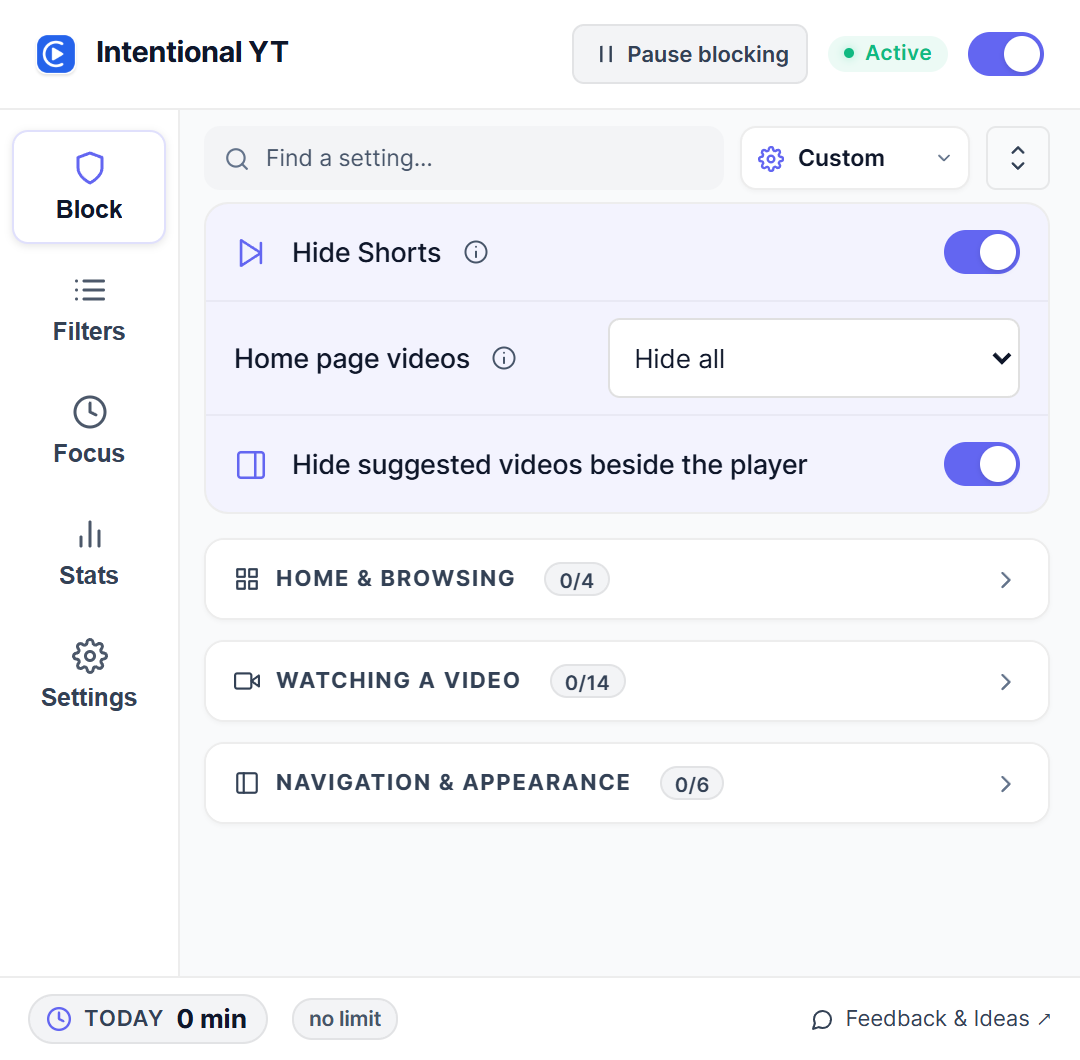
Reload YouTube if it was open when you installed the extension. Then open a course playlist you already use. Check that you can play a lesson and see the playlist, while the unrelated suggested videos are hidden. Try a search too, so you know you can still look up an explanation halfway through a lesson.
For more detail about the individual switches, see how to hide Shorts and recommendations.
Go straight to the lesson you meant to watch
Bookmark the course playlist or save the next lesson's link with your notes. When it's time to study, you can open that link directly. Hiding the homepage feed doesn't stop direct video links from working.
For example, you could open a saved algebra playlist, watch one lesson, and pause to work through the exercises before choosing the next. Keeping the playlist panel visible lets you return to an earlier explanation without searching for it again. With autoplay disabled, you decide when to continue.
If you follow a few educational channels, keep Hide subscriptions off. Their uploads remain accessible through subscriptions even with homepage recommendations hidden.
Give a long lecture enough time
A daily watch limit is optional. If you use one, check today's accumulated watch time before starting a lecture. The budget includes earlier viewing in that browser profile; opening a new video doesn't reset it.
Suppose you've already watched 20 minutes and now want to watch a 50-minute lecture at normal speed. A 60-minute daily budget would interrupt it about 40 minutes in, assuming continuous playback. You'd need at least 70 minutes in total to allow for both. Pausing to take notes doesn't spend playback minutes.
To set the budget, open Focus, enable Daily limit, and choose your minutes. Break reminder is a separate setting: it prompts you to take a break without imposing the daily playback limit. The daily watch-limit guide explains the counter and what happens when you reach the limit.
You can also leave the daily limit off and use only the hiding controls. There's no need to configure a timer just to remove recommendations.
Filter a topic without losing useful channels
Sometimes the distraction is in your search results. A channel might post good tutorials alongside videos you don't want to see during a study session.
In Filters, you can add a title phrase to Keyword Blocklist. Start with one specific phrase and check the results: a broad word such as review could hide exam reviews you need. Keyword filters only read titles, so they can't reliably decide whether a video is educational.
Use the keyword-filtering guide for matching examples. If you want to hide a creator's videos regardless of the title, follow the channel-blocking guide instead.
If a playlist or subscription feed disappears
First check that Hide playlist panel or Hide subscriptions is off. Then check for an active schedule set to Force all protections on, which temporarily turns on extra hiding rules. Ordinary focus sessions use your chosen settings. Reload YouTube after changing the setup.
To turn protections on automatically during class hours, follow the scheduled YouTube blocking guide.
If the page still looks wrong, check for an extension update. YouTube changes its layouts, and some changes need a fix on my side. Send me feedback with your browser, extension version, and which part of the page disappeared.
To bring recommendations back later, set Home page videos to Show all and turn off the hiding switches you no longer want. Your study setup doesn't have to be permanent.
Try Intentional YT
Set a daily watch limit, hide distracting feeds, or use Focus Lock to add a cooldown before changing your settings. Your settings and watch-time counters stay in your browser, with no extension telemetry.