How to hide YouTube Shorts and recommendations on desktop
YouTube's homepage can get in the way when you already know what you want to watch. You came for a tutorial, but the recommendations are there before you've even typed a search.
If you'd rather skip that feed, open Intentional YT and set Home page videos to Hide all. You can still search for videos and visit your subscriptions. Hide Shorts and Hide suggested videos beside the player are separate switches, so you can decide how much to hide.
I'm Manas, the developer of Intentional YT. This guide covers the desktop website; these settings won't change the YouTube phone app.
Want to try this setup?
Choose your browser below. Once installed, you can pick which parts of YouTube to hide. You don't need an account.
1. Install the extension and open its controls
Install Intentional YT from your browser's store using one of the links above. Then open YouTube and click the extension in your browser toolbar. If you're opening it for the first time, follow the setup prompts, then go to the Block tab.
It helps to pin the extension to your toolbar if you expect to change these settings often.
2. Hide the YouTube home feed and keep subscriptions
Set Home page videos to Hide all. In Home & browsing, leave Hide subscriptions off.
With this setting, the recommended videos on YouTube's main homepage disappear. You can still type a search, open a link someone sent you, or visit a favorite channel. The Home tab on a channel's page should stay available too.
| Where you browse | Before hiding the home feed | With Home page videos set to Hide all |
|---|---|---|
| YouTube homepage | A feed of recommended videos | Homepage videos are hidden |
| Search | Search for a video or topic | Search remains available |
| Subscriptions | Browse uploads from channels you follow | Available when Hide subscriptions is off |
| Channel pages | Browse a creator's videos | Channel browsing remains available |
| A direct video link | Open and play a video | Video playback remains available |
If more disappears than you expected, check your other settings and whether a schedule set to Force all protections on is active. If hiding the home feed also blanks a channel's Home tab, check for an extension update. If it's still happening, send me the channel URL through the feedback link below.
Hide Shorts and video recommendations too
Start with whichever part keeps pulling you away from what you came to watch:
| Control | Choose this when |
|---|---|
| Hide Shorts | You want to hide Shorts entry points in supported feeds, search results, and channel pages |
| Home page videos: Hide all | You want to search or visit subscriptions instead of browsing homepage recommendations |
| Hide suggested videos beside the player | You want to finish a video without browsing the suggested sidebar |
| Home page videos: Show only the first 15 | You want a smaller homepage feed with a stopping point |
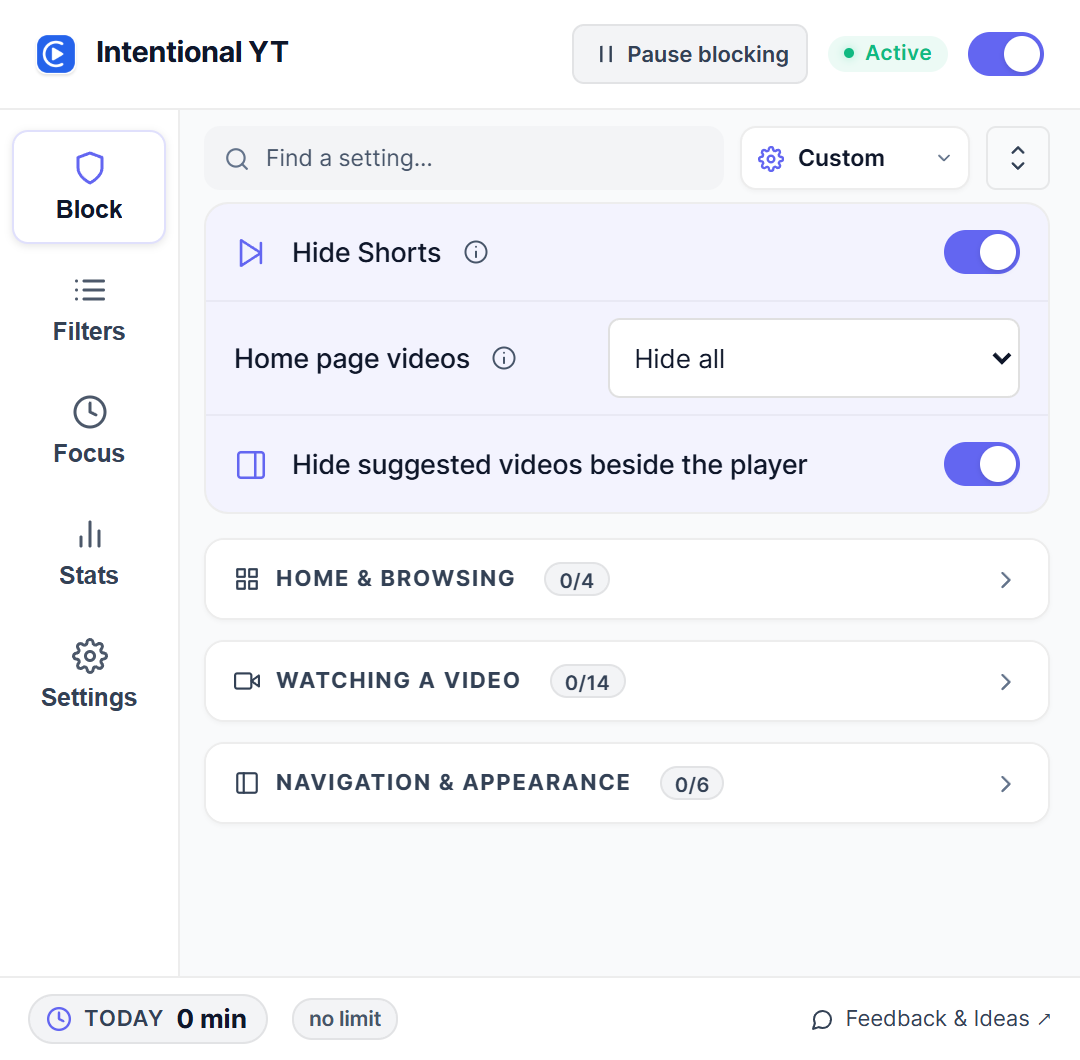
For tutorials, try hiding the home feed, Shorts, and suggestions beside the player. Leave the rest alone for now. If you miss browsing recommendations, switch Home page videos back to Show all, or try Show only the first 15.
3. Check your usual YouTube pages
Now visit the homepage, search for a video, and play it. Check that the sections you chose are hidden and that the parts you use still work. If YouTube was open during installation, refresh it first.
If someone sends you a Shorts link, Redirect Shorts to normal player lets you open it in the regular video player. Hiding Shorts links and changing how they play are separate settings.
What if Shorts or recommendations still appear?
YouTube puts recommendations in several places. If you've hidden the sidebar but still see a grid of videos when a video ends, there's another setting for that:
| What you still see | Setting to check |
|---|---|
| Suggested videos beside the player | Hide suggested videos beside the player |
| A grid of videos after playback ends | Hide end screen recommendations |
| Clickable video or playlist cards near the end of a video | Hide end screen cards |
| Another video starts automatically | Disable autoplay |
| A Shorts link opens the vertical player | Redirect Shorts to normal player |
You'll find these controls in the Block tab. The popup's search can help you find a setting by name. To stop YouTube from starting another video on its own, turn on Disable autoplay as well.
If the matching control is already on:
- Check the extension's main switch and its access to YouTube in your browser's extension settings.
- If the popup says Protections Snoozed, choose Resume Now to reapply your rules.
- Review the selected preset and any active schedule, then reload YouTube. A schedule set to Force all protections on can apply more hiding rules than your usual setup.
- Check for an extension update. If the problem remains, note whether it happens on the homepage, a search page, a channel, or a watch page.
YouTube changes its layouts, and sometimes the extension needs an update to catch up. If something still slips through, send me feedback. Tell me which page it happens on, your browser and extension version, and which setting you turned on. A cropped screenshot helps too; leave out private account details.
Keep subscriptions or a course playlist available
For a setup built around lectures and course playlists, follow how to use YouTube for studying without blocking it completely.
Working through a course? Leave Hide playlist panel off so the next lesson is easy to find. You can keep Disable autoplay on and start each lesson when you're ready. Likewise, leave Hide subscriptions off if that's how you keep up with your favorite creators.
If your playlist or subscriptions disappear despite those settings, check for an active schedule set to Force all protections on. It can temporarily hide those sections. Ordinary focus sessions use your chosen settings.
Does this work inside the YouTube phone app?
No. This setup works on the YouTube website in Chrome, Firefox, or Edge on desktop. It won't change what you see in the YouTube app on your phone or tablet.
If you're still watching longer than you meant to
Even with recommendations hidden, it's easy to keep going through a playlist. If you want a stopping point, you can set a daily YouTube watch limit as well.
For unwanted creators in your search results, see how to block YouTube channels.
You can try the controls in the interactive demo before installing. If you're weighing up other extensions, there's also a comparison with Unhook and UnTrap.
Try Intentional YT
Set a daily watch limit, hide distracting feeds, or use Focus Lock to add a cooldown before changing your settings. Your settings and watch-time counters stay in your browser, with no extension telemetry.