How to block YouTube channels from search results
Searching for a tutorial gets frustrating when the same channel keeps filling the results. To hide it with Intentional YT, open Filters and add the channel's name or @handle to Channel Blocklist.
I'm Manas, the developer. Here's how to set that up in desktop Chrome, Firefox, or Edge.
Can I exclude a channel from YouTube search results?
Yes. Add the channel's name or @handle to Channel Blocklist under Filters. YouTube's Don't recommend channel option can tune Home and Watch Next suggestions, but the channel may still appear in Search. Intentional YT hides matching video cards in Search and other supported feeds. It has no search-only setting.
Block a channel in Chrome, Firefox, or Edge
- Install Intentional YT in the desktop browser where you use YouTube. Open YouTube, or reload the tab if it's already open.
- Open the extension from your browser toolbar and select Filters.
- Enter the channel's name or
@handleunder Channel Blocklist. A channel URL containing its@handleor/channel/ID also works. - Press Enter or select Add.
- Return to your search and check whether the channel's videos have disappeared. Reload the page if needed.
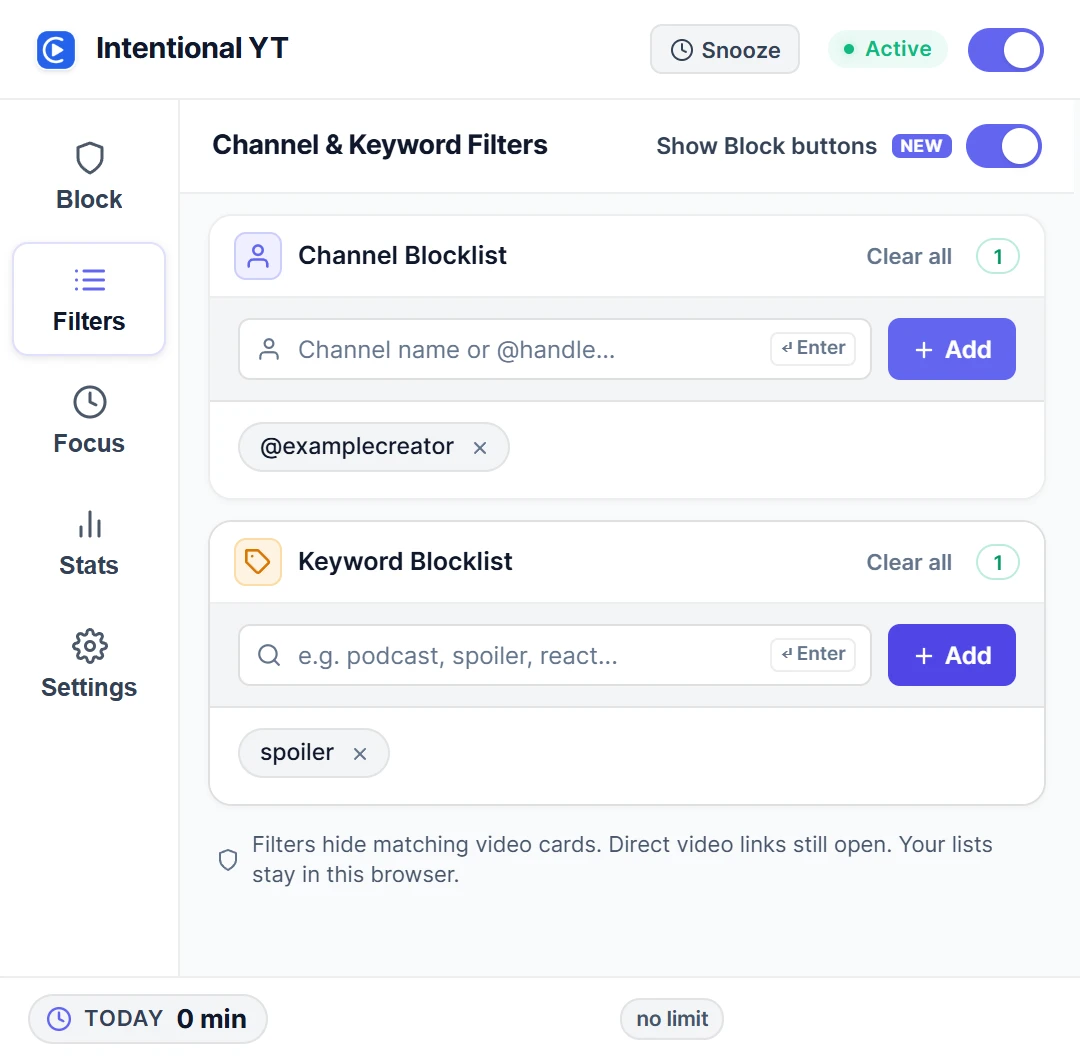
An exact @handle helps distinguish channels with similar names. Capital letters don't matter. The list stays saved in your browser, and you can remove an entry with the × beside it.
For a quicker way to add channels, turn on Show Block buttons in Filters. When you see a Block button beside a channel name on a video card, click it. An undo option appears briefly in case you pick the wrong channel.
Find the right channel handle
Click the creator's name to open their channel page. In an address such as youtube.com/@examplecreator, the handle is @examplecreator. Copy the actual channel address or handle into the blocklist. A link containing watch?v=... points to a video, so it won't give you the channel entry you need.
Some video cards don't include a handle the extension can read. If yours doesn't work, try the channel's displayed name or its Block button. Two channels with the same display name can both match, so check which videos disappear.
Check that the channel is hidden
Use a search where you've just seen a video from the channel. Add the channel, then repeat that search. Its matching video cards should disappear while unrelated results remain.
To undo the change, remove the entry from Filters. Those videos can appear again, though YouTube may reorder or change the results between searches.
Hide videos by keyword
In Filters, add a word or phrase to Keyword Blocklist and press Enter or Add.
This helps when you like a creator but want to skip a particular topic. For example, season finale hides videos with that phrase in their title or a description snippet on the card, across creators. It won't catch a spoiler that appears only in a thumbnail, the full description or the video itself.
Start with one phrase and check what disappears. Broad words can hide more than you intended: spoiler also matches "no spoilers." The keyword-filtering guide has more examples and explains how short words and phrases are matched.
Where the filters work
The same blocklist applies to supported video cards in search results, your home feed, and suggestions beside a video. There's no search-only setting, so blocking a creator here can also hide their videos elsewhere on YouTube.
You can still open a direct link to a video. The extension hides results in your browser; it doesn't delete videos or change your YouTube account's recommendations. It also doesn't affect the phone app, and each browser profile keeps its own list. This is a personal browsing tool, not parental control software.
If you'd rather hide recommendations altogether, the Shorts and recommendations guide walks through those controls.
Still seeing a blocked channel?
- Make sure the extension's main switch is on, then reload YouTube. This helps with tabs that were open before an installation or update.
- Try the exact
@handleor the channel URL in Filters if a display name isn't working. - If the popup says Protections Snoozed, choose Resume Now to turn filtering back on.
- Look at what's still showing. A channel heading or a special search section may not be handled like an ordinary video card.
Still seeing it? Send me the page type, browser, and extension version, along with a cropped screenshot if you can. YouTube layout changes sometimes need a fix on my side.
To put a limit on how long you watch, set a daily watch limit.

Try Intentional YT
Set a daily watch limit, hide distracting feeds, or use Focus Lock to add a cooldown before changing your settings. Your settings and watch-time counters stay in your browser, with no extension telemetry.