How to hide YouTube videos by keyword
You may like a channel's reviews but want to skip its finale discussions until you've caught up. In Intentional YT, open Filters, add a word or phrase to Keyword Blocklist, and press Enter or select Add. Videos with matching titles or card description snippets disappear from supported search results, the home feed, and suggestions beside a video.
I'm Manas, the developer of Intentional YT. These steps are for desktop Chrome, Firefox, and Edge. If you're looking to filter the YouTube phone app or moderate comments on your own channel, this setting won't do that.
Set up your first keyword filter
- Install Intentional YT for your browser, then open YouTube. Reload any YouTube tabs that were open before installation.
- Open the extension from your browser toolbar and select Filters.
- Find Keyword Blocklist and enter one word or phrase, such as
season finale. - Press Enter or select Add. Add other phrases separately.
- Return to a YouTube search containing that phrase in a video title. Check that the matching video card disappears; reload if needed.
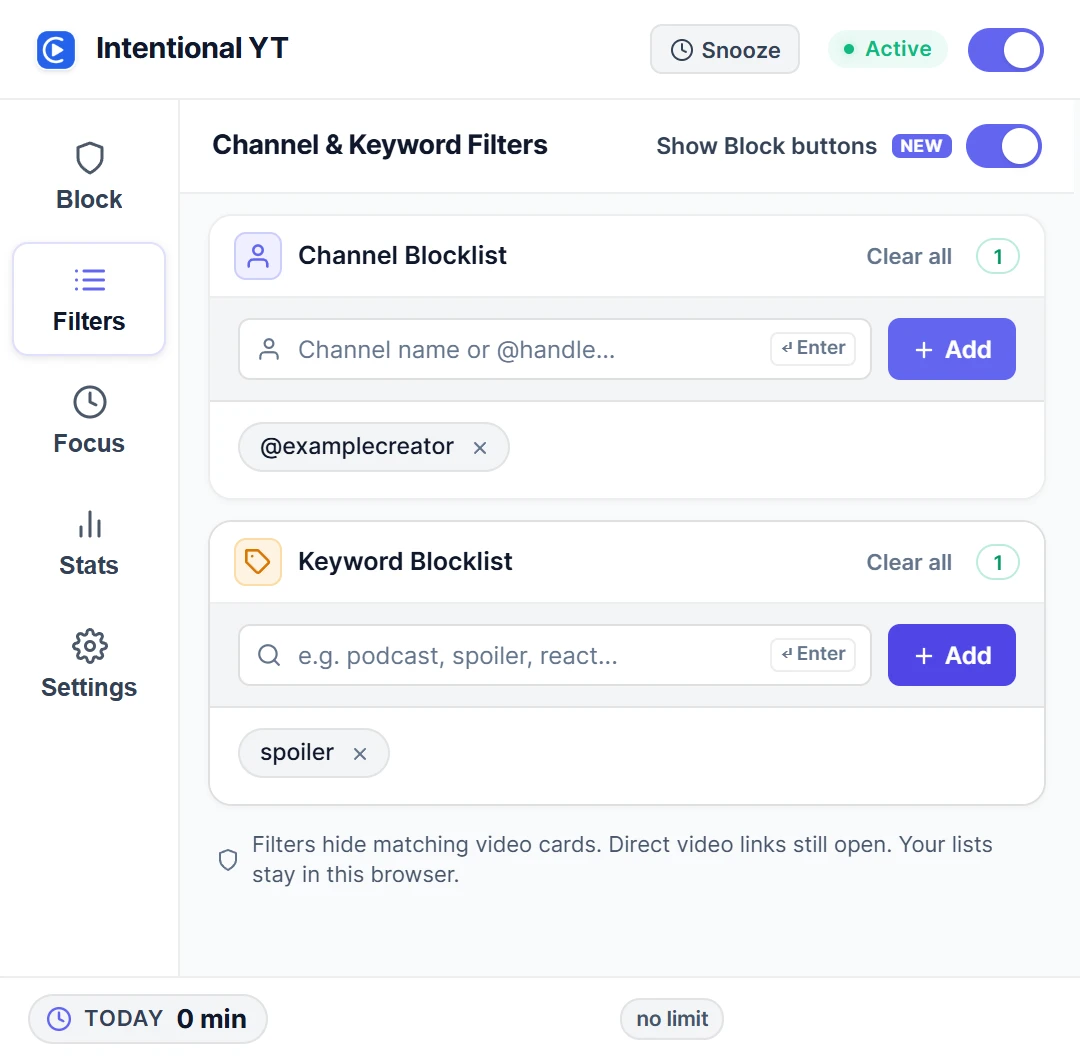
Try one phrase first. It's easier to spot a filter that's too broad before you've added a whole list. Your entries stay saved in that browser profile. To undo one, click the remove button beside it, then reload YouTube if the hidden videos haven't returned.
What a filter will actually hide
Take season finale as an example. Before you add it, you might see both "Season finale explained" and "My favorite episodes from season one." After you add it, the first video is hidden. The second stays unless its card description also contains that phrase.
There's a catch: "I can't believe that ending" can still appear. The filter reads the title and any supported description snippet on the card. It doesn't open the video to read its full description, interpret the thumbnail, or recognize spoilers by meaning. It can cut down on unwanted results, but it can't promise a spoiler-free feed.
How keyword matching works
Capital letters don't matter: podcast matches "PODCAST" too. Phrases must appear together in the title or a card description snippet; season finale won't match "Finale recap for the season." A phrase split between the title and description won't match either.
Longer entries can match part of a word too. For example, spoiler catches "spoilers." It also catches "no spoilers," even though that might be a video you'd want to keep.
Short entries, up to three characters, work differently: they match at word boundaries. That's why car hides "Car repair basics" but leaves "Oscar predictions" alone.
Choose specific phrases when a broad word hides too much. Adding review could hide useful product reviews as well as the entertainment reviews you meant to avoid. Remove or narrow an entry if wanted videos disappear.
Where does keyword blocking apply?
The blocklist filters supported video cards in YouTube search results, the home feed, and recommendations beside a video. There isn't a search-only keyword setting. If you've already hidden the entire home feed, test your keyword rule in search instead.
These rules hide cards locally. They don't delete videos, retrain your YouTube account's recommendations, or prevent you from opening a direct video link. Each browser profile keeps its own settings; this is a personal browsing tool, not a parental-control restriction.
To hide everything from one creator, use the channel-blocking guide. To remove whole recommendation sections instead, see how to hide YouTube Shorts and recommendations.
Why is a matching video still showing?
- Check that the word appears in the video title or a description snippet on the card. Channel names, thumbnails and text found only in the full video description aren't checked.
- Confirm the entry appears under Keyword Blocklist and the extension's main switch is on.
- If the popup says Protections Snoozed, select Resume Now.
- Reload YouTube and check that the extension has access to YouTube in your browser settings.
If none of those checks helps, it may be a result layout the extension doesn't handle yet. Send me the phrase you added and the title that stayed visible, plus your browser, extension version, and where you saw it. A cropped screenshot helps me see what went wrong.
Want to limit watch time as well? You can set a daily YouTube watch budget separately from your keyword filters.

Try Intentional YT
Set a daily watch limit, hide distracting feeds, or use Focus Lock to add a cooldown before changing your settings. Your settings and watch-time counters stay in your browser, with no extension telemetry.