How to schedule YouTube blocking for work or study
Set a schedule for the hours when you want YouTube out of the way. Intentional YT lets you choose the days and decide whether to lock the site or leave videos available under stricter protections.
I'm Manas, Intentional YT's developer. This guide covers the YouTube website in desktop Chrome, Firefox, and Edge.
Choose what happens during scheduled hours
Block YouTube entirely shows a locked commitment screen during the hours you selected. Choose it when you do not want to watch YouTube at all in that window.
Force all protections on turns on every block control during the schedule, including settings you normally leave off. Playback remains available, although YouTube may look more stripped down than usual. When the schedule ends, your regular settings return.
Create a YouTube work-hours schedule
- Install Intentional YT in the browser where you use YouTube. Open the extension and select Focus.
- Open Scheduled Focus Sessions and switch on Scheduled Blocking.
- Select + Add Schedule. Give the rule a label, such as Work hours or Study time.
- Choose the active days and set a start and end time. The form starts with Monday to Friday, 09:00 to 17:00 selected. Times follow your computer's local clock.
- Under Blocking Mode, choose Block YouTube entirely or Force all protections on, then select Save Schedule.
- Make sure the schedule's own switch and the main Scheduled Blocking switch are both on.
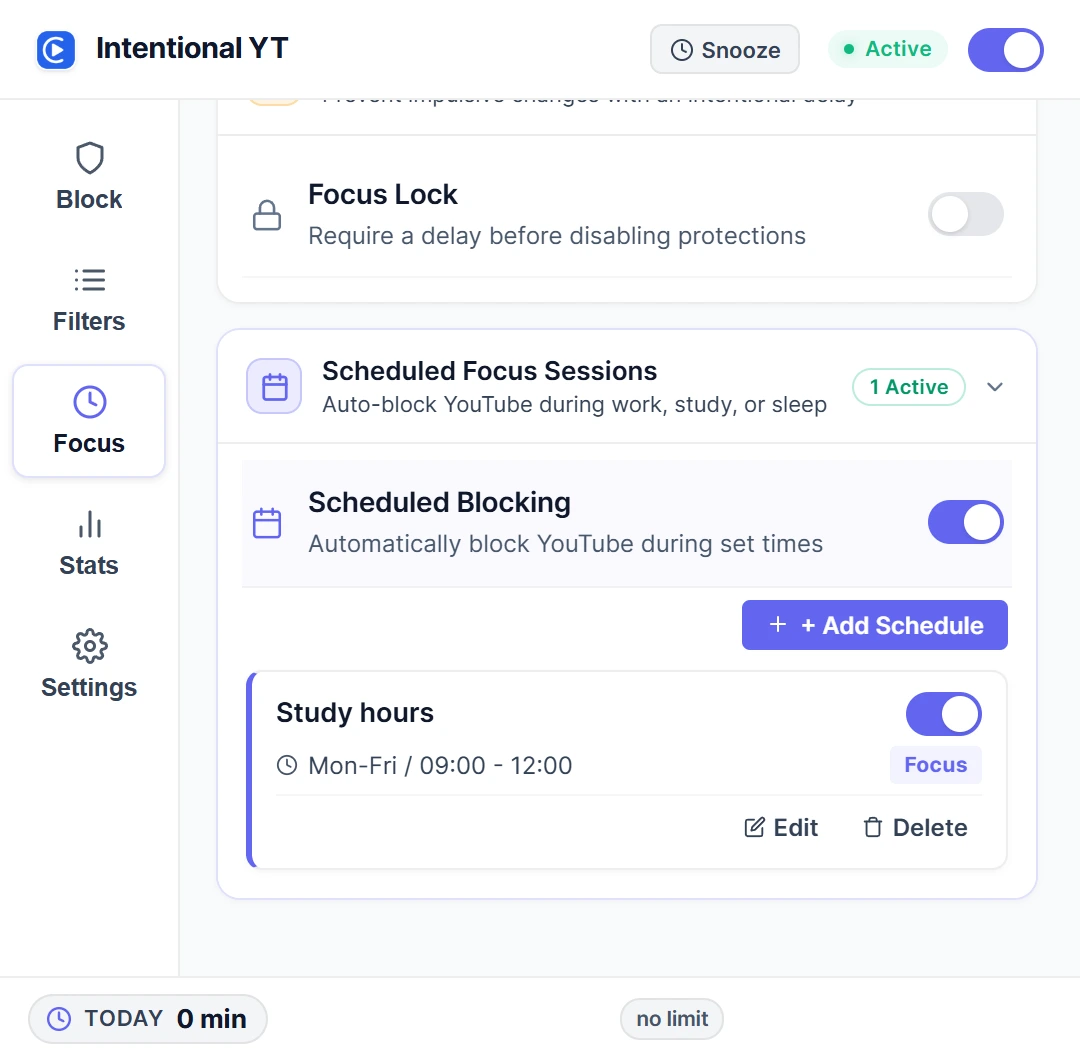
You can create another rule for a different block, such as an afternoon study session. Each rule has its own days, hours, and mode.
To cover a session that ends the next morning, set an end time earlier than the start time. The selected day is the day the schedule begins.
What happens outside the schedule?
When the scheduled hours end, your usual block settings resume. A daily playback limit runs independently, so it can still pause a video later in the day.
If a schedule does not start, check that the extension is enabled, YouTube protections are not snoozed, and both schedule switches are on. Reload YouTube if the tab was open when you changed the settings.
Schedule or daily time limit?
Use a schedule to protect particular hours, such as weekday mornings. A daily limit sets how long you can watch in total. You can use both: the schedule covers work or study hours, while the daily limit caps playback for the rest of the day. See the daily YouTube time-limit guide to set a budget.
Frequently asked questions
Can I schedule YouTube blocking for weekdays only?
Yes. The form starts with weekdays selected. Use Active Days to choose Saturday, Sunday, or another combination.
Can I still watch a video during a scheduled block?
Yes, with Force all protections on. It hides distracting parts of YouTube while leaving playback available. Block YouTube entirely shows a locked commitment screen during the scheduled hours.
Does the schedule block YouTube on my phone?
No. A schedule applies to the desktop browser profile where you installed Intentional YT. It does not affect the YouTube phone app or a different browser profile.
How do I stop the schedule?
Use the switch on a schedule card to pause that rule. Use the main Scheduled Blocking switch to pause all rules. Your saved schedules stay in place.
For a study setup that keeps search and course playlists available, see how to use YouTube for studying without blocking it completely.

Try Intentional YT
Set a daily watch limit, hide distracting feeds, or use Focus Lock to add a cooldown before changing your settings. Your settings and watch-time counters stay in your browser, with no extension telemetry.